
Multi-Step Renames and Presets
Combining multiple renaming actions into a multi-step rename
Combine several renaming actions into one multi-step rename in A Better Finder Rename with the action list of the Advanced Sidebar. Worked example and video.
Sometimes a single renaming action is not enough.
Say you want to add holiday to the front of your new file names and make all file names lowercase, so that:
Image 001.gifbecomesholiday image 001.gif
In this scenario, you will want to combine two renaming actions into a multi-step rename.
- Click the
Show Advanced Sidebarbutton (or chooseView›Toggle Sidebar) - In the Advanced Sidebar, select the
Actionstab - At the bottom of the sidebar, click the
+button to add a new action
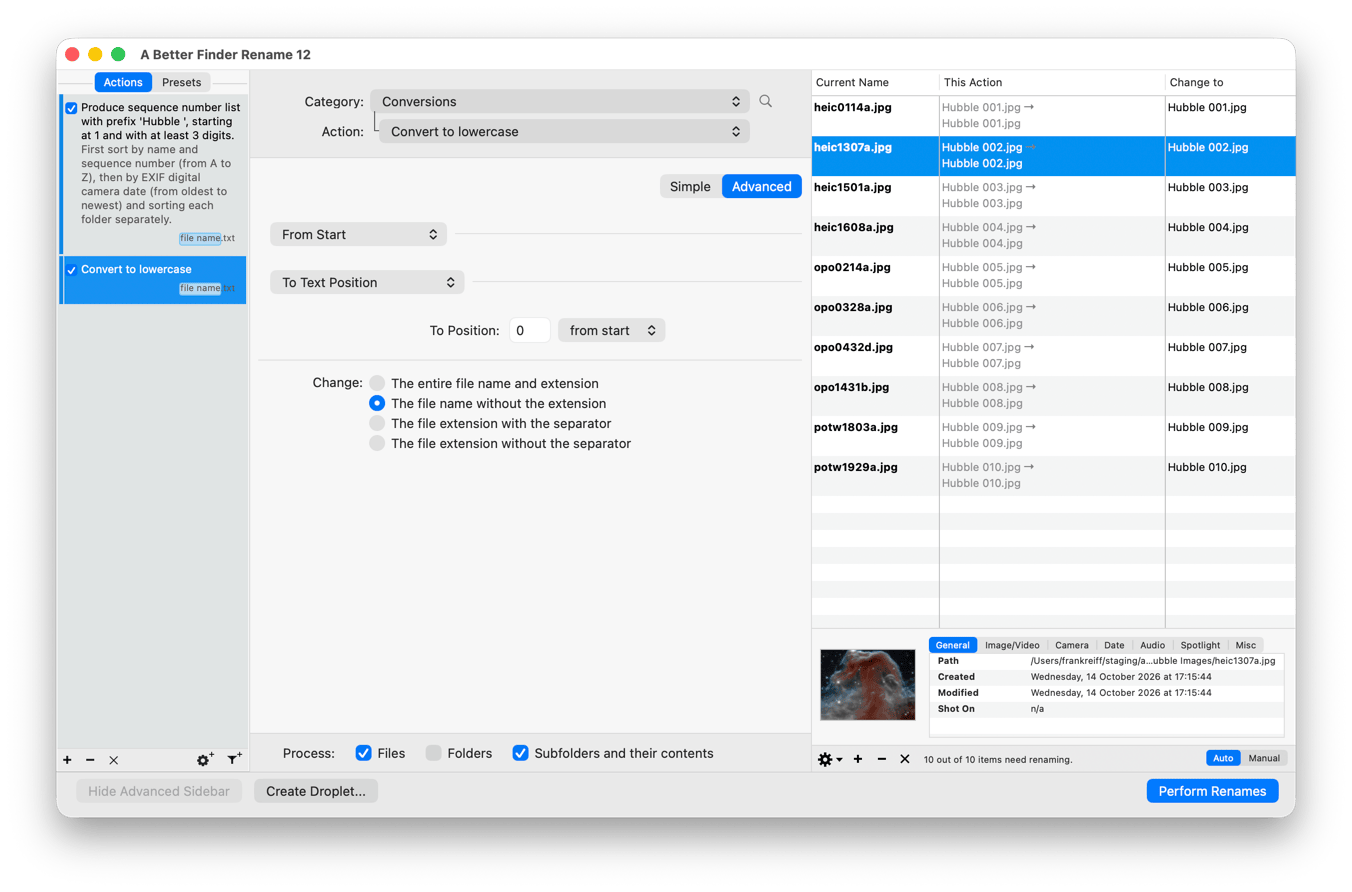
You can select which action you are editing by selecting the corresponding item in the action table.
- Click on the
+button to duplicate the current action - Click on the
-button to delete the current action (there always needs to be at least one action) - Click on the
Xbutton to delete all actions except for the current one - Click on the filter (the funnel icon with the plus sign) button to create a filter action
You can enable or disable action by ticking or un-ticking the checkbox in the Active column. This is especially useful
for adjusting your settings as it allows you to preview only the results of selected actions. Naturally when all action
checkboxes are un-ticked the file names will remain unchanged.
You close the action table by clicking on the Hide Advanced Sidebar button. This option is only available when only a
single action remains and this action is active.