Applies to macOS Ventura through macOS 27
The short answer: a file’s Created and Modified dates — the ones the Finder shows and sorts
by — live in the disk’s catalogue. The Finder can display them but can’t change them; the Terminal
can (touch for Modified, SetFile -d for Created, with no preview or undo), and a dedicated tool
does it in bulk with a live preview. One distinction saves a lot of grief: these file-system dates
are not the same as a photo’s embedded “date taken” (its EXIF date). If it’s the date a photo
was taken you’re after, that’s a separate job with its own guide — how to change the date a photo
was taken on a Mac. This guide is about the file’s own Created
and Modified dates.
A disclosure before we start: I’m the developer of A Better Finder Attributes, a paid utility for changing file dates and metadata that I’ve been working on for many years. You’d expect this to end by recommending it, so it starts with what the built-in and free tools genuinely do, and where each stops.
The one distinction that explains most date problems
Get this right and the rest follows:
- File-system dates are kept in the file system’s catalogue: Created (the birth date) and Modified (last changed). These are what the Finder’s “Date Created” and “Date Modified” columns show, and what it sorts by. They are easy to disturb: copying or downloading a file usually resets its created date to today.
- Embedded dates are stored inside the file as metadata: a photo’s EXIF
DateTimeOriginal(the “date taken”), a video’s content-created date, a song’s tags. Because they’re part of the file, they survive copying. But an editing app may quietly rewrite or strip them when it saves, so always keep a backup of your originals before bulk edits.
That is the short version. The full map of every date a Mac keeps, Date Added and Last Opened included, with which app reads which one, is in which date does your Mac actually use?.
A wrinkle worth knowing: Spotlight’s dates (and the “date” Apple Photos sorts on) are derived from the embedded metadata. You can’t set them directly. You change the underlying embedded date and Spotlight catches up. Which embedded fields the two big Apple apps read, and in what order, has its own pair of guides: why Apple Photos shows the wrong date and Final Cut Pro’s Content Created date.
How to change a file’s creation or modification date on a Mac
The Finder shows a file’s Created and Modified dates but can’t change them. Three routes can:
- Terminal —
touch -t 202401151200 filesets the modification date;SetFile -d "01/15/2024 12:00:00" file(from Apple’s Command Line Tools) sets the creation date. No preview or undo, so work on copies. - A dedicated tool — A Better Finder Attributes sets both dates on any number of files at once, with a live preview before anything is written.
- A photo’s “date taken” is a separate embedded date — change it in Apple Photos (Image ▸ Adjust Date and Time) or in bulk: see how to change the date a photo was taken.
Copying or downloading a file resets its Created date to today — the usual reason a folder of photos suddenly sorts in the wrong order. The sections below cover each route in depth, and which to use for which job.
What the built-in and free tools do
The Finder (shows dates, can’t change them)
The Finder displays Created and Modified, sorts by either, and that’s the limit. There is no built-in way to edit a file’s date from the Finder. So when photos sort in the wrong order because copying reset their created dates, the Finder can show you the problem but not fix it.
Apple Photos (a different date — the “date taken”)
Apple Photos can change a photo’s embedded date taken (Image ▸ Adjust Date and Time), but that is a different date from the file-system Created/Modified this guide is about, and it’s a deep topic of its own — Photos vs ExifTool vs a batch tool, RAW files, scans with no date, time zones. It has its own guide: How to change the date a photo was taken on a Mac.
The Terminal (can change either kind, no safety net)
If you live in a shell, you can reach both kinds of date:
# set the modification date (and access date) to 15 Jan 2024, 12:00
touch -t 202401151200 photo.jpg
# set the EXIF "date taken" with the free ExifTool
exiftool "-DateTimeOriginal=2024:01:15 12:00:00" photo.jpg
The created date is the awkward one: there’s no plain command for it, but SetFile -d from
Apple’s Command Line Tools still does it (it’s officially deprecated, but works). As with renaming
from the Terminal, the catch is no preview and no undo, and you have to know exactly which of the
several date fields you mean. Test on copies first.
Where the free tools run out of road
You reach the limit the moment you need to do any of these in one pass, with a preview:
- Change the date taken on hundreds of photos, including RAW formats (Sony ARW, Canon CR2/CR3, Nikon NEF), not just JPEGs.
- Sync a photo’s embedded date taken back to its file-system created date so it sorts correctly in the Finder.
- Set a file’s date from the date written in its filename (common with scans and downloads).
- Shift a whole shoot by a few hours after a timezone or camera-clock mistake, or give files from a phone, a camera and a video camera the same time zone offset (its own guide).
- Lift original dates from a folder of untouched originals onto edited copies that lost them.
- Date the folders of a copied or restored archive from the files inside them. Folders have the same two dates and their own guide: how to change a folder’s created or modified date on a Mac.
A dedicated tool for file dates
This is the gap A Better Finder Attributes fills: a live preview of the new dates before any file is touched, every date field in one place, and the bulk operations above as repeatable actions. It’s currently version 7, US$29.95 / €29.95 as a one-time purchase (no subscription; minor updates are free, major upgrades are discounted), with a free trial so you can confirm it handles your files before paying. The things people actually buy it for:
- Set a file’s Created or Modified date directly, on any number of files, with a preview before anything is written.
- Set dates from the filename, from another file of the same name in a different folder, or by incrementing along a sort order — common with scans and downloads.
- Fix Finder sorting by copying a photo’s embedded shooting date onto the file’s Created date in one pass, so a copied-in shoot sorts chronologically again.
- Shift file dates in bulk to correct timezone and clock errors.
- Remove dates and other metadata (including location) before sharing files — its own deep dive: How to remove metadata from photos and videos on a Mac.
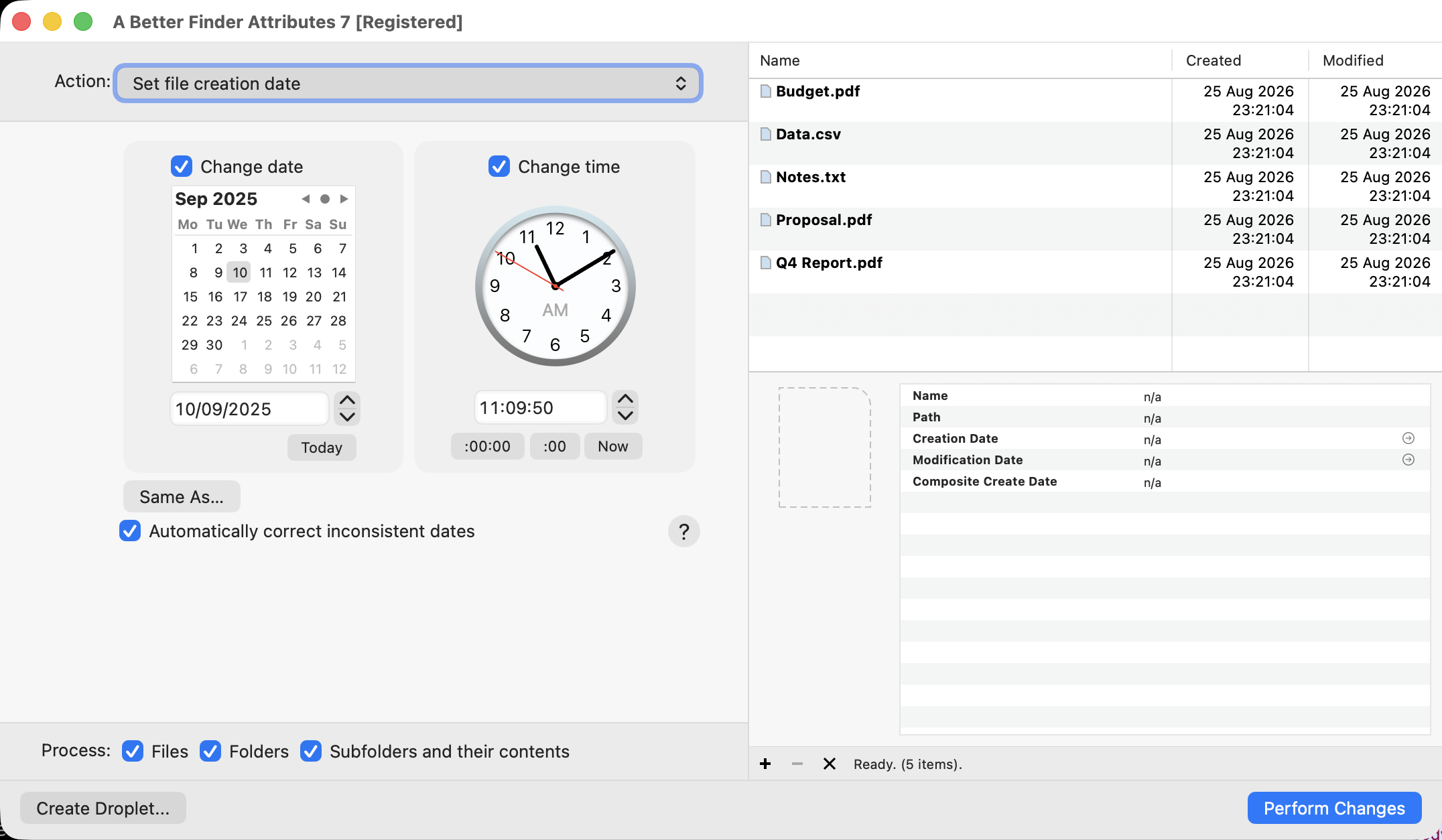
The simplest file-date action: pick a Created date on the calendar and the time on the clock, and the whole selection gets it in one pass. Reference: setting file creation and modification dates in the manual.
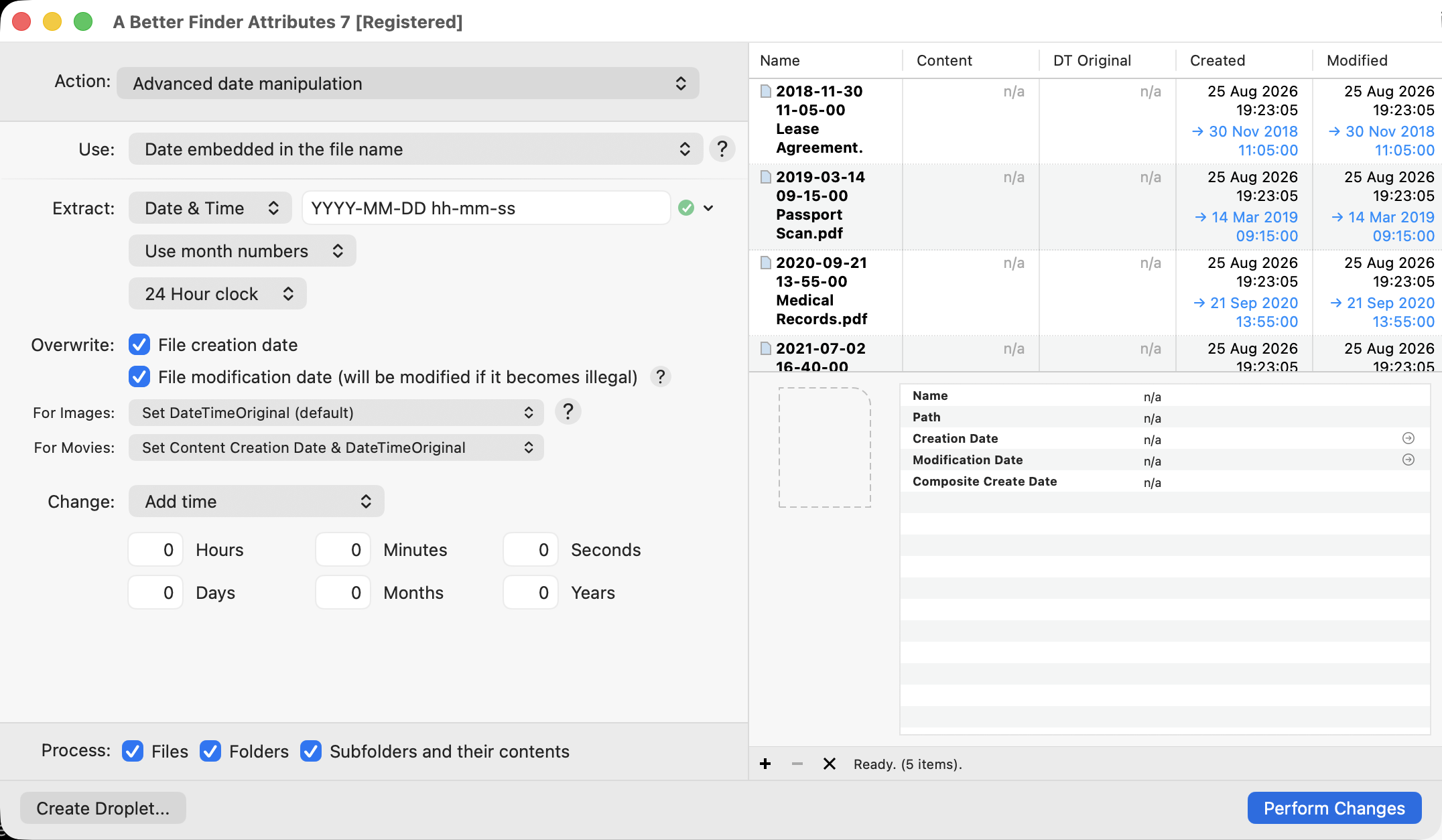
Setting dates from the filename: these documents were copied in today, so the Finder shows today’s Created date — and A Better Finder Attributes is about to reset each one to the date read out of its name (30 Nov 2018, 14 Mar 2019, and so on), previewed before any file is touched.
Changing the embedded date taken on photos (including RAW) is the same tool’s other specialty — a separate job covered in How to change the date a photo was taken on a Mac.
Set a file’s date from the date in its filename
This comes up more than you’d think: scans named after the date on the back of the print, bank
statements and invoices called Statement_2019-03-14.pdf, photos that came through a messaging app
as IMG-20200101-WA0001.jpg with the embedded date stripped out. The real date is right there in
the name, and the Finder shows the day you downloaded the file.
The free route is ExifTool, which can read a date out of the filename and write it to a file date:
# set the modification date from the date in each file's name
exiftool "-FileModifyDate<Filename" /path/to/files
It pulls the year, month, day and (if present) time digits out of the name in that order, so it
works for year-first names like 2024-01-15 or 20240115_093000 and silently gets 15-01-2024
wrong. Writing FileCreateDate on a Mac additionally needs the setfile utility from Xcode’s
command-line tools, and as always there is no preview.
A Better Finder Attributes handles the awkward names. In Advanced date manipulation, choose Date
embedded in file name as the source (pattern reference), then describe the name with a pattern: YYYY-MM-DD,
DD_MM_YYYY, DD MMMM YYYY with written-out month names (English, German and French lists are a
click away), with or without a time such as hh.mm.ss on a 12 or 24 hour clock. Day numerals like
1st and 3rd are fine, as is any text before or after the date. A green tick confirms the pattern
is valid, the preview shows the date extracted from every file, and the result can go to the Created
date, the Modified date, the embedded EXIF dates, or several at once. That preview is the screenshot
above.
Which tool for which job
| Your job | Use |
|---|---|
| Just see or sort by a file’s dates | Finder (free, built in) |
| Scripted, one-off Created/Modified change from the shell | Terminal (touch, SetFile) |
| Change Created/Modified on many files, with a preview | A Better Finder Attributes |
| Set file dates from the filename, or fix Finder sorting in bulk | A Better Finder Attributes |
| Change a photo’s embedded date taken (a different date) | the date-taken guide |
Common pitfalls, whatever tool you use
- Editing apps can strip or rewrite metadata. Saving a photo in some editors discards or changes its embedded dates. Keep a backup of your originals before any bulk change.
- Copying resets the created date. A freshly copied or downloaded file is usually “created” today, which is why collections sort wrongly after a move. The fix is the embedded date, not the file-system one.
- You can’t set Spotlight or Photos dates directly. They’re derived from embedded metadata; change that and they follow.
- Created vs Modified must stay consistent. macOS won’t accept a modified date earlier than the created date; good tools reconcile this for you.
FAQ
What’s the difference between Created, Modified and “date taken”? Created and Modified are file-system dates in the disk catalogue (what the Finder shows). “Date taken” is an embedded EXIF date inside the photo. Copying a file resets its Created date but leaves the date taken untouched, which is why the two so often disagree.
Can the Finder change a file’s date? No. The Finder shows and sorts by Created and Modified, but has no option to edit them. You need the Terminal or a dedicated tool.
Can I change the date a photo was taken? That’s the embedded EXIF date — a different thing from the file’s Created/Modified date this guide covers. See How to change the date a photo was taken on a Mac.
How do I set a file’s date from the date in its filename? Built-in tools won’t, but a dedicated
tool can read a date like 2024-01-15 out of the name and write it to the file. This is a common
need for scans and downloads.
Why did my photo’s date change when I edited it? The editing app rewrote or discarded the embedded metadata when it saved. Always keep the originals.
Can I change the creation date from the Terminal? touch -t sets the modification date,
exiftool sets EXIF dates, and SetFile -d (Apple’s deprecated Command Line Tools) sets the
creation date. There’s no preview and no undo, so work on copies.
Frank Reiff is the developer of A Better Finder Attributes and A Better Finder Rename, Mac file-management utilities in continuous development since 1996. Renaming files by their dates instead? See How to rename photos by date taken on a Mac; coming from Windows’ Attribute Changer, see what to use on a Mac instead; for the map of every date a file carries, see which date does your Mac actually use?; for the dates Apple’s own apps show, see why Apple Photos shows the wrong date and Final Cut Pro’s Content Created date. Get in touch with a date problem this guide doesn’t cover.